Glitter 3D Editable Text Effect Style: A Practical Guide for Designers
In the crowded landscape of digital design, standing out often comes down to the smallest details. A flat headline might convey a message, but a sparkling, dimensional one captures attention. The Glitter 3D Editable Text Effect Style offers exactly that—a way to transform standard typography into a vibrant, eye-catching element without requiring advanced 3D modeling skills. This resource is designed for anyone from social media managers to freelance graphic designers who need high-impact visuals quickly. However, simply downloading a template does not guarantee a professional result. Understanding how to leverage this tool effectively is the difference between a polished design and one that looks cheap or cluttered.
Understanding the Value of Editable PSD Resources
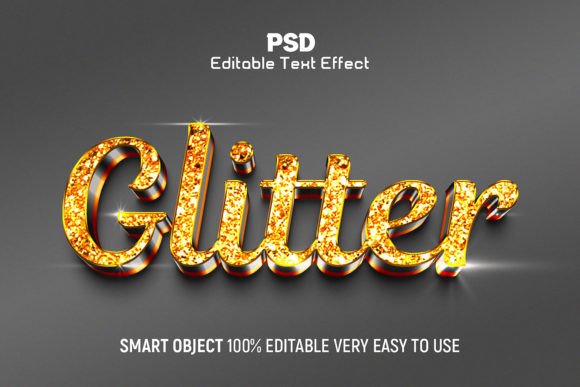
The core appeal of the Glitter 3D Editable Text Effect Style lies in its efficiency. It is an editable text effect created by Adobe Photoshop CC, packaged as a well-organized PSD file. For professionals working under tight deadlines, this is invaluable. Instead of spending hours manually creating layer styles, blending modes, and glitter textures, you can apply a pre-built style with a few clicks. The inclusion of a JPEG preview and a help guide ensures you know exactly what you are getting before you even open the file.
This type of resource democratizes high-end design. It allows beginners to achieve results that look like they were crafted by experts, while giving seasoned pros a head start on complex projects. The ability to change every element, including the font, means the effect is not a static image but a flexible system. With a resolution of 300dpi in RGB color mode, it is suitable for both web use and high-quality print materials, provided the final export settings are managed correctly.
Common Pitfalls When Using Glitter Text Effects
Despite the ease of use, many users make predictable mistakes that undermine the quality of their work. One of the most frequent errors is treating the template as a "set it and forget it" solution. Because the layers are grouped and organized, it is tempting to simply type your text and export immediately. However, the default font size, spacing, and background interaction are rarely perfect for every project context.
Ignoring Contextual Contrast
Another common oversight is failing to consider the background against which the text will sit. Glitter effects rely heavily on light reflection and shadow depth. If you place a bright, multi-colored glitter text on a busy, high-contrast background, the 3D illusion collapses. The text becomes unreadable, and the sparkle turns into visual noise. This mistake directly impacts communication; if your audience cannot read the message instantly, the design has failed regardless of how pretty the glitter looks.
Overlooking Resolution Requirements
While the source file is high-resolution (300dpi), users often export at incorrect settings. A frequent error among non-designers is resizing the canvas too large after applying the effect, thinking the vector-like quality will hold up. While the text layers may be sharp, the rasterized glitter texture elements can become pixelated if stretched beyond their intended scale. Always check the preview image size (2000×1250) as a reference point for your final output dimensions.
How Mistakes Impact Your Professional Results
These seemingly minor oversights have real consequences. In marketing, a poorly executed text effect can damage brand perception. A logo or headline that looks distorted or muddy suggests a lack of attention to detail. For entrepreneurs and small business owners, this can erode trust before a customer even reads your copy. Furthermore, inefficient workflows caused by trial-and-error editing waste valuable time. If you spend twenty minutes fixing a blurry texture because you didn't check the DPI settings initially, you are reducing your overall productivity.
For freelancers, the cost of these mistakes is even higher. Delivering a low-quality asset to a client can lead to revision loops, delayed payments, and damaged reputation. The goal of using a resource like the Glitter 3D Editable Text Effect Style is to save time and enhance quality, not to create new problems through misuse.
Practical Steps to Avoid Design Errors
To ensure you get the best results, adopt a methodical approach when working with editable PSD files. Here are specific strategies to elevate your usage of this resource:
- Review Layer Groups First: Before typing your new text, explore the folder structure. The file includes well-organized layers in groups. Identify which layers control the base text, the glitter overlay, and the drop shadows. Understanding this hierarchy prevents accidental deletion of critical elements.
- Test Font Compatibility: The template states that the font is 100% editable. However, not all fonts render well with heavy 3D effects. Script fonts with thin strokes may lose their definition under a thick glitter texture. Test a few different typefaces within the document to see which maintains legibility while embracing the 3D style.
- Adjust Lighting Direction: Realism depends on consistent lighting. If your background image has light coming from the top left, ensure the shadows and highlights on your glitter text match that direction. Most PSD templates allow you to tweak these angles via layer styles.
- Export Correctly: When saving for the web, use "Save for Web" or "Export As" to balance file size and quality. For print, ensure your final document remains at 300dpi. Do not simply stretch the canvas; adjust the text size within the document to fit the required dimensions.
Evaluating the Resource Before You Commit
Before integrating the Glitter 3D Editable Text Effect Style into your workflow, take a moment to evaluate if it fits your specific needs. Check the included help guide thoroughly. A good tutorial can clarify how to swap colors or modify the density of the glitter particles. If the guide is missing or unclear, the learning curve will be steeper than expected.
Also, verify the license terms. While the description mentions support and easy editing, ensure you have the rights to use the effect for commercial projects if you are designing for clients. Many free resources come with restrictions that could limit their utility for business purposes. Finally, look at the preview images critically. Does the style align with your brand's aesthetic? A glitter effect might be perfect for a fashion campaign or a holiday promotion, but it could feel out of place for a serious financial report or a medical service advertisement.
Maximizing Efficiency and Creativity
When used correctly, this Photoshop CC resource becomes a powerful engine for creativity. Imagine creating a series of social media posts where each headline pops with a unique 3D texture, yet takes only minutes to produce. By mastering the editable layers, you can create variations—changing the color palette to match seasonal themes or adjusting the glossiness to suit different moods.
The true value lies in the flexibility. You are not limited to the text shown in the preview. Whether you are designing a YouTube thumbnail, a blog header, or a promotional flyer, the ability to edit every element means the effect adapts to you, not the other way around. Remember, the tool is only as good as the designer wielding it. Take the time to learn the layer structure, respect the resolution limits, and always prioritize readability over decoration.
If you encounter issues during the process, do not hesitate to reach out to the creator for support. As noted in the resource details, assistance is available for questions regarding the design. Utilizing this support network can save you hours of frustration and ensure your final project shines as brightly as the text effect itself. By avoiding common traps and focusing on intentional design choices, you can turn a simple template into a standout piece of visual communication.